WizardMasteryCanvas
A multimodal AI studio on your desktop
Images, video, 3D and audio in one workspace, with a layered canvas, a background job queue and your choice of AI provider.
What it is good at
Seven studios in one workspace.
Image studio
Text-to-image with a choice of models, prompt shortcuts, aspect ratios, batches and resolution settings.
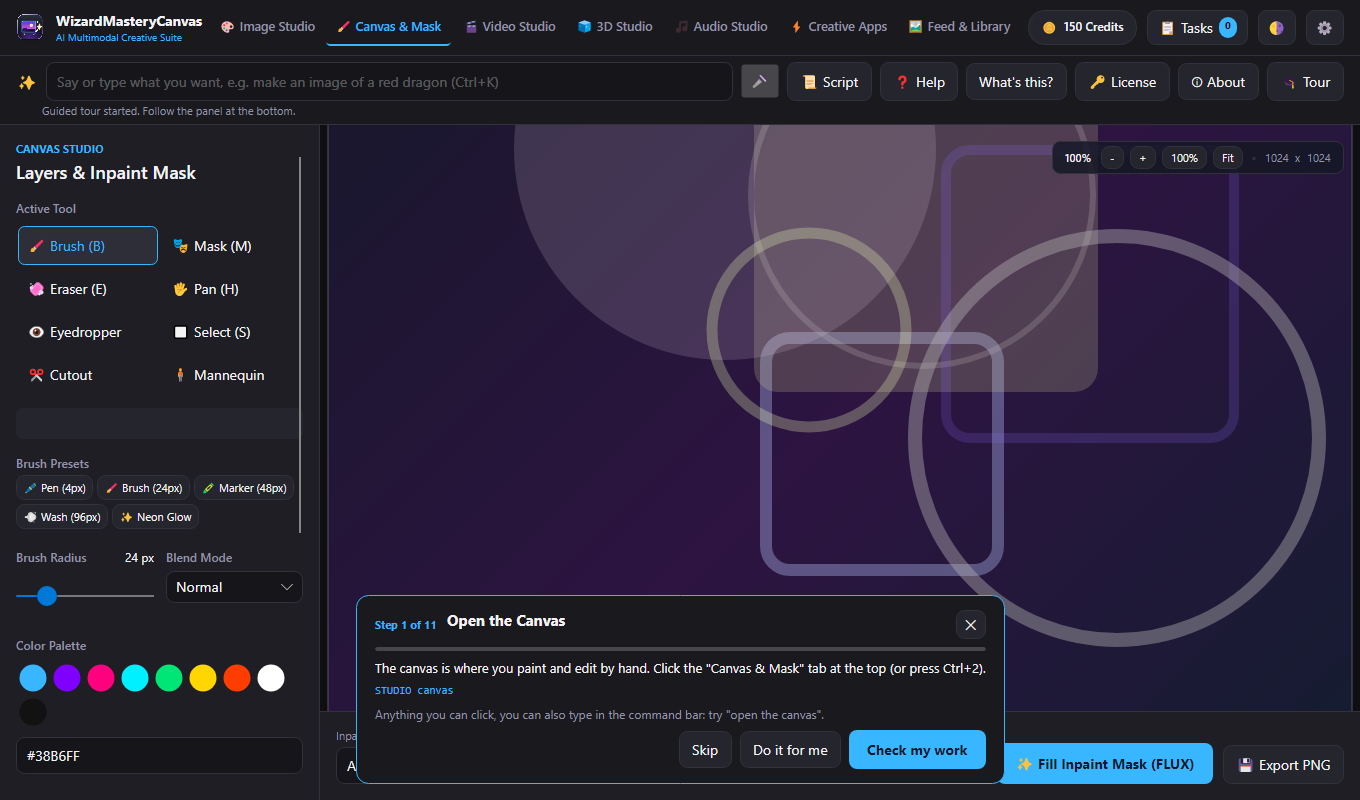
Layered canvas and inpainting
Draw, mask and inpaint on a layered canvas with opacity, pan and zoom, flip and rotate, background removal, and full undo and redo.
Video studio
Generate video with duration and camera-motion controls.
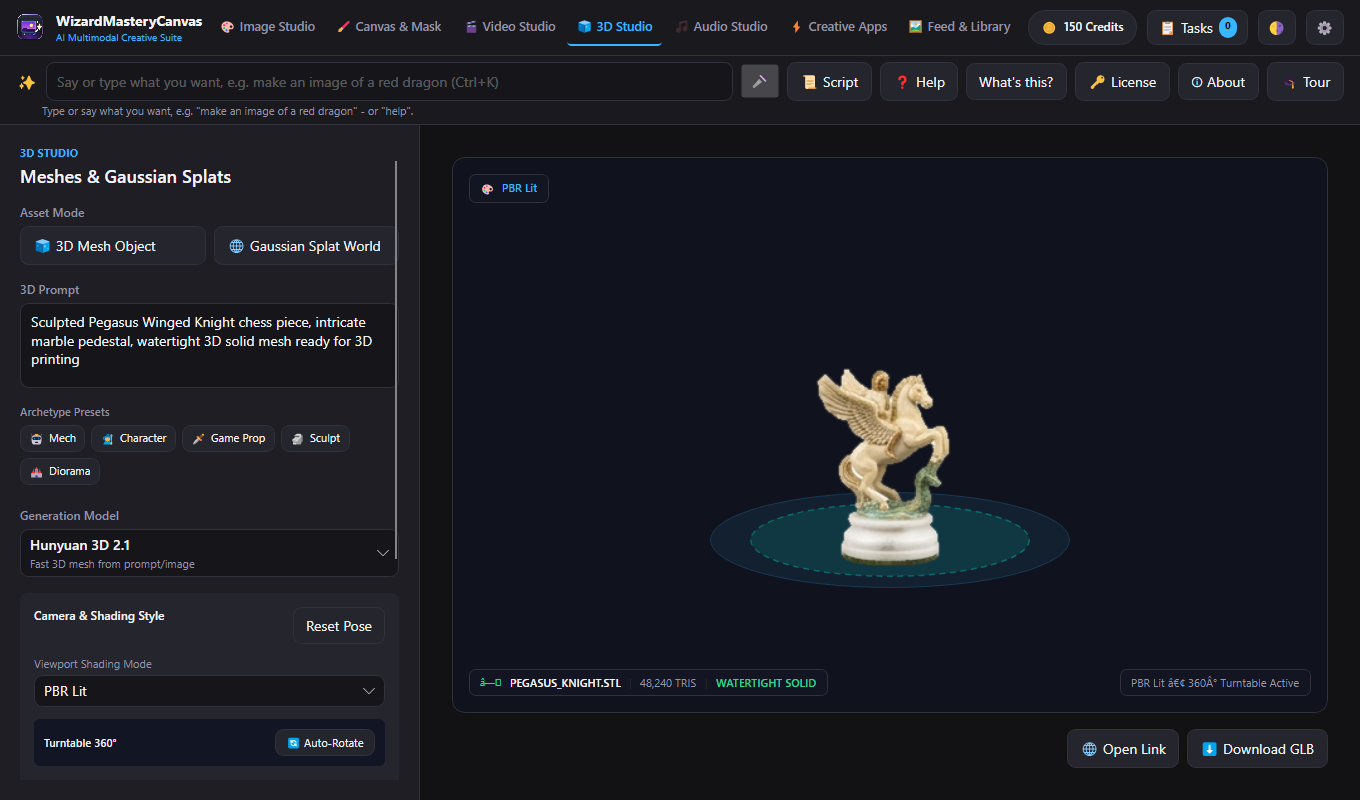
3D studio
Create 3D meshes and Gaussian splats, and pose a mannequin by yaw, pitch, roll and distance.
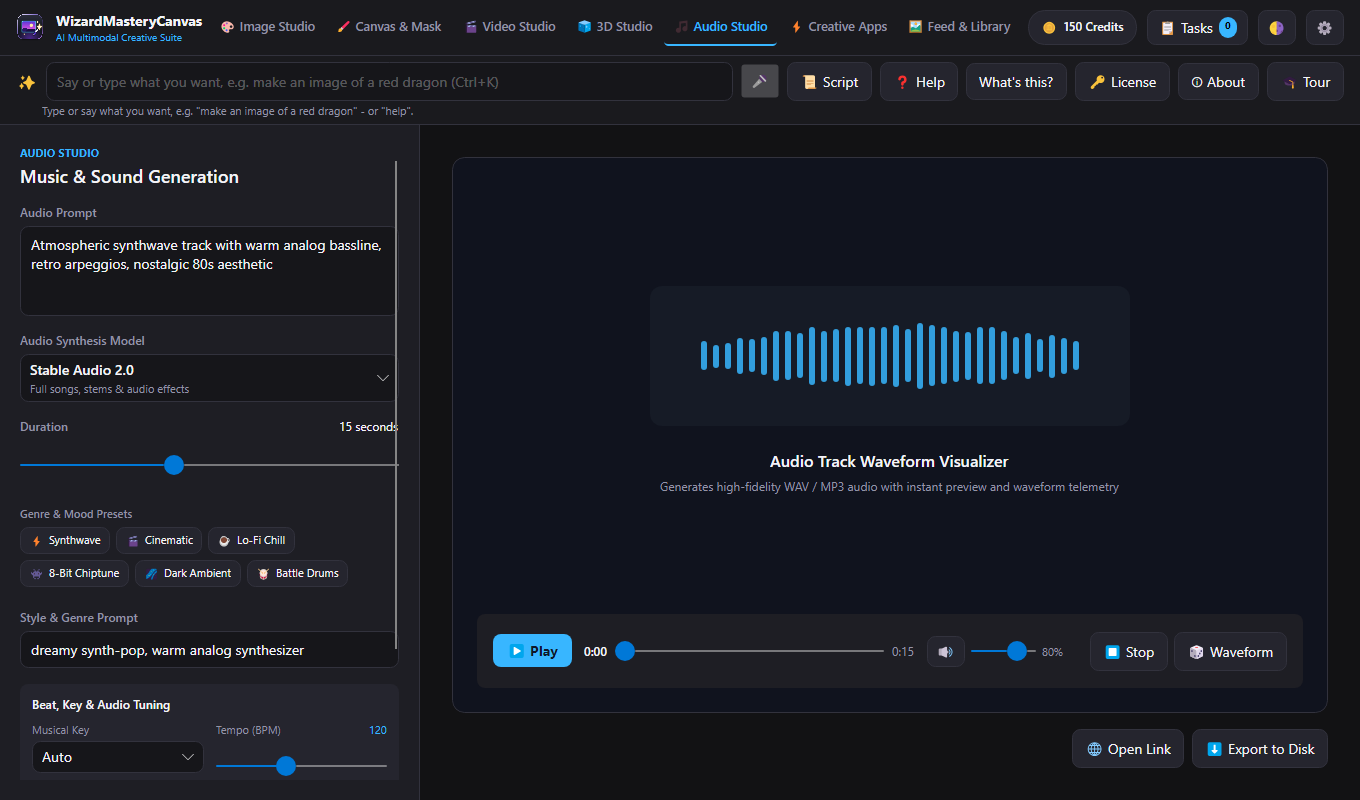
Audio studio
Generate sound and music, with a waveform preview.
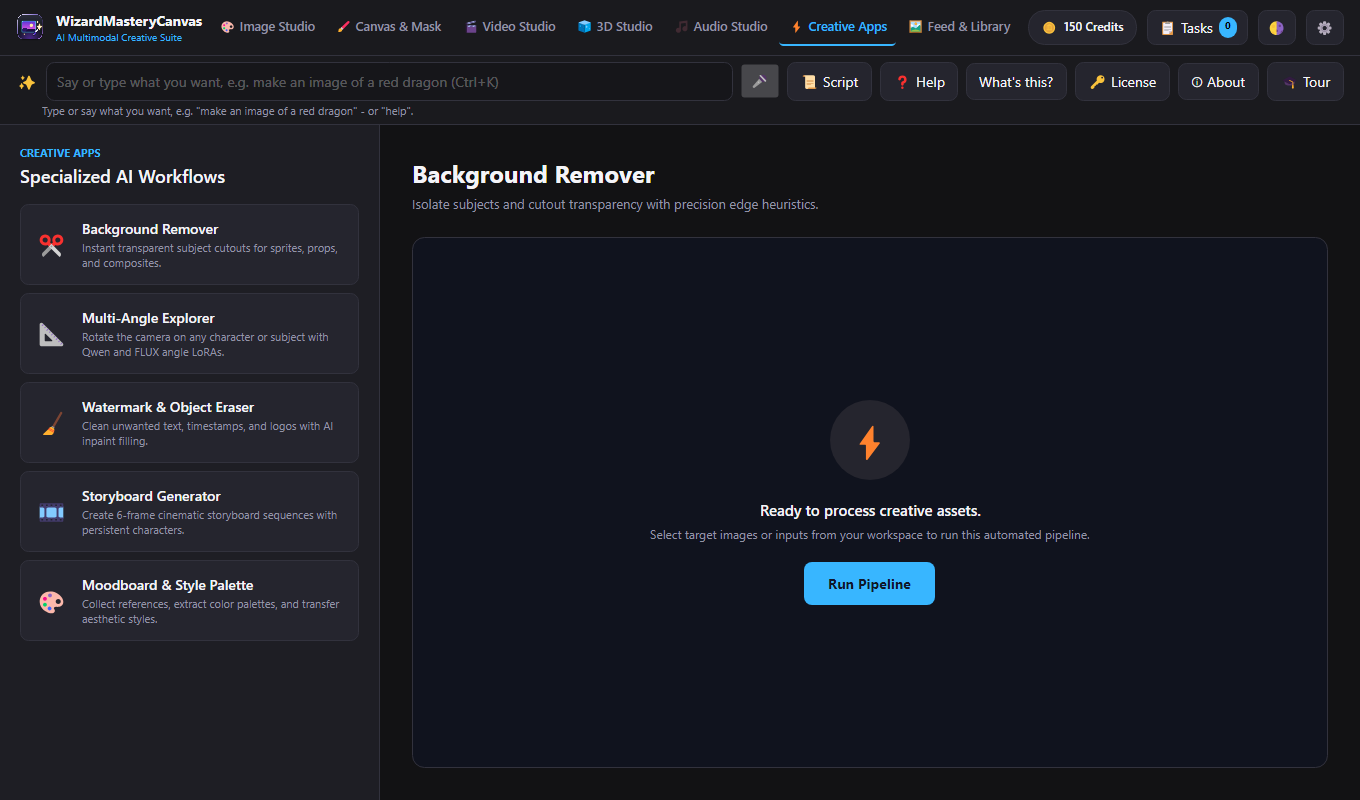
Creative apps
Ready-made workflows such as background removal, multi-angle views, watermark removal and storyboards.
Feed and library
Finished work lands in one library you can browse, reuse and send on to the canvas or the video studio.
Background job queue
Long jobs run in the background with live progress, are remembered between sessions, and can be cancelled.
Natural language and voice
Run the studio by talking to it.
Say or type what you want
Type a sentence such as "make an image of a red dragon" in the command bar and press Enter. Suggestions help as you type, and the same bar is one shortcut away from every studio.
Ctrl+KVoice, on your computer
Press the microphone button and say the same sentence. Recognition runs on your computer and nothing is sent anywhere.
Scripting
Automate the studio.
A script editor
Write scripts with conditions, loops and functions; every action a script takes is undoable.
F8Help
Learn the studios as you go.
A searchable manual
Guides for each studio, natural language and voice, scripting, the command reference, settings and shortcuts; search the whole manual.
F1What's this?
Click any control to learn what it does and why it may be unavailable.
Shift+F1Ask the command bar
Type "help" or "help with the canvas" in the command bar, or say it.
A guided tour that checks your work
Press Tour under the tabs for eleven short lessons: the canvas, layers, the image studio, the command bar, a tiny script and the manual. Each lesson checks the real app before moving on, "Do it for me" performs the step so you can watch, and the tour needs no credits or account.
Tour buttonPart of the WizardForge suite
WizardMasteryCanvas stands on its own, and it was built to cooperate with the other WizardForge apps.
Open and run every app from one window
The WizardForge launcher shows each app as a card with its version and license status. Launch any of them with a click or a double-click, jump straight into a recent file, see which ones are running, and install or remove apps.
Send content between apps Coming
A shared exchange layer lets the apps pass vector (SVG), image (PNG) and solid-model (STEP) content to one another by type. It will appear as a "Send to" menu in each app.
The same habits everywhere
A command bar, built-in help, undo and redo, and the License window follow the same pattern in each app, so learning one helps with the next.
One subscription for all four
The WizardForge Suite covers WizardDraw, WizardCAD, WizardMasteryCanvas and WizardRas on the same computers.
Several apps inside one window Coming
Today each app opens in its own window and the launcher keeps them together. Hosting them inside a single WizardForge window is on the roadmap.
Screens
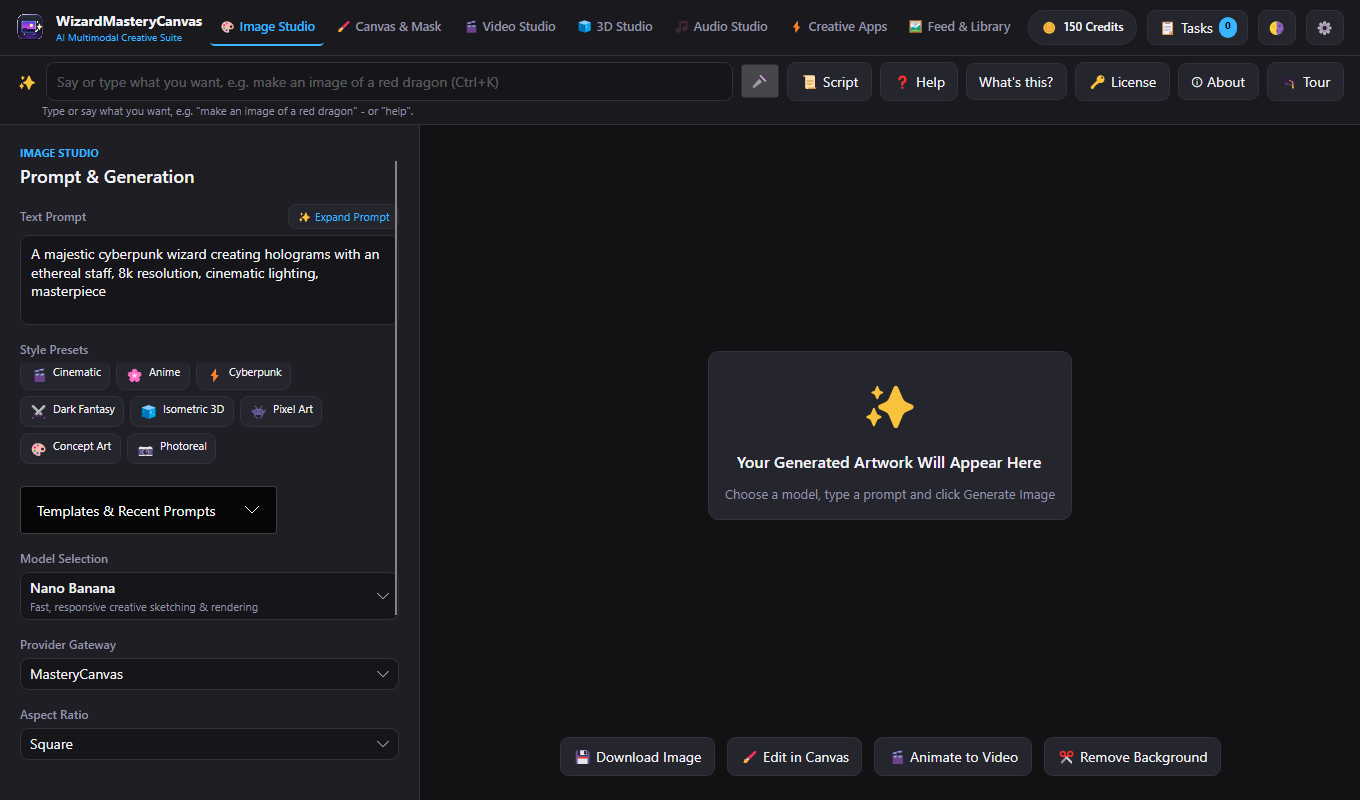
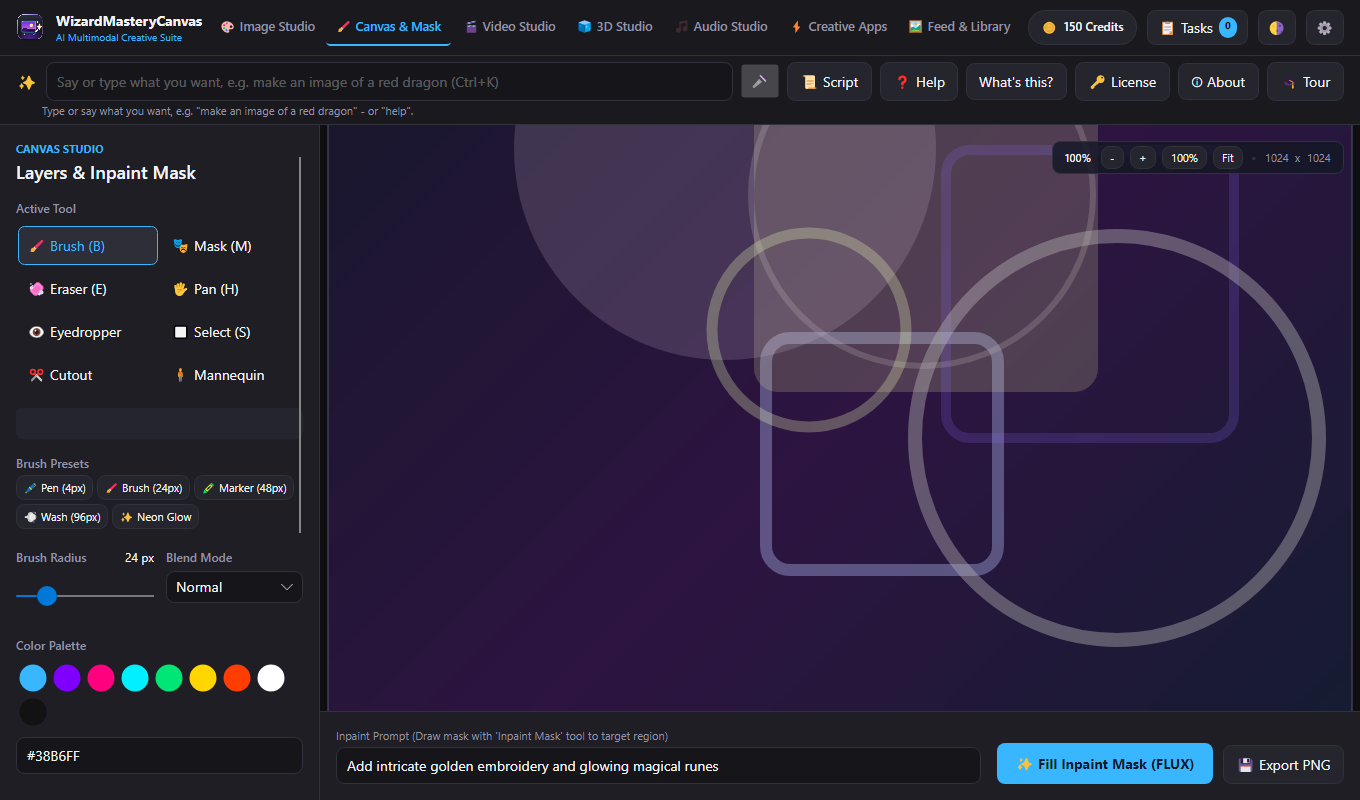
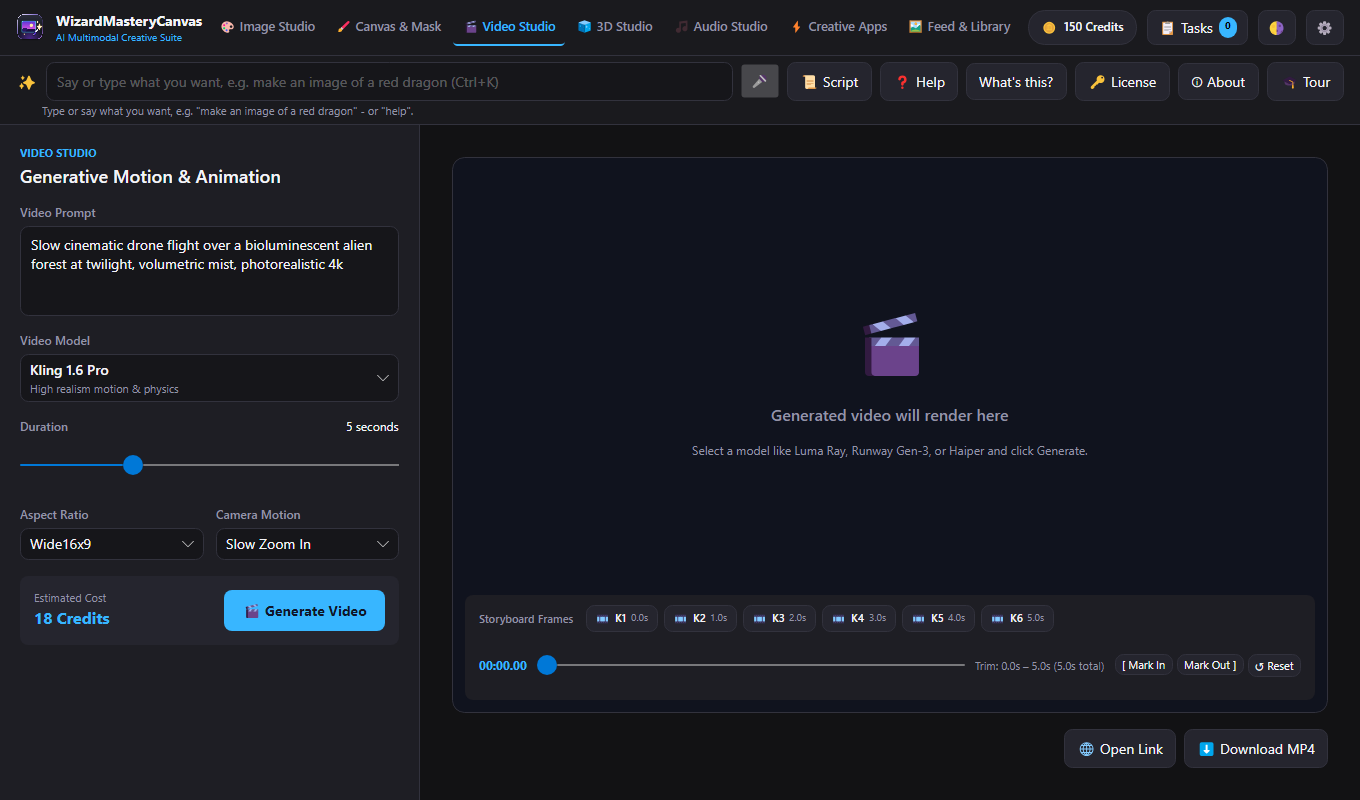
At a glance
- AI services
- Connects to the AI providers you choose: you paste an API key for a provider in Settings, and that provider's terms and fees apply
- Platform
- Windows
- Free trial
- 7 days, no card needed
Try it yourself
Free for 7 days, no card needed. Create an account, download it, and see for yourself.
Download free 7-day trial